
Setting Up the GitHub MCP Server
Detailed Installation Guide

What is the GitHub MCP Server?
The GitHub MCP (Model Context Protocol) Server is a bridge that connects AI assistants with GitHub's APIs. This allows AI tools to interact directly with GitHub repositories, issues, pull requests and other features.
Prerequisites
Before installation, ensure you have:
Install Vscode Insiders here
Docker installed and running on your system
GitHub Personal Access Token with appropriate permissions:
For basic repository access:
reposcopeFor organization management:
admin:orgscopeFor GitHub Packages:
read:packagesscope
Manual Configuration in VS Code(Easy one)
For more advanced configuration in VS Code Insider:
Open VS Code Settings JSON:
Press
Ctrl + Shift + P(orCmd + Shift + Pon macOS)Type "Preferences: Open User Settings (JSON)" and select it
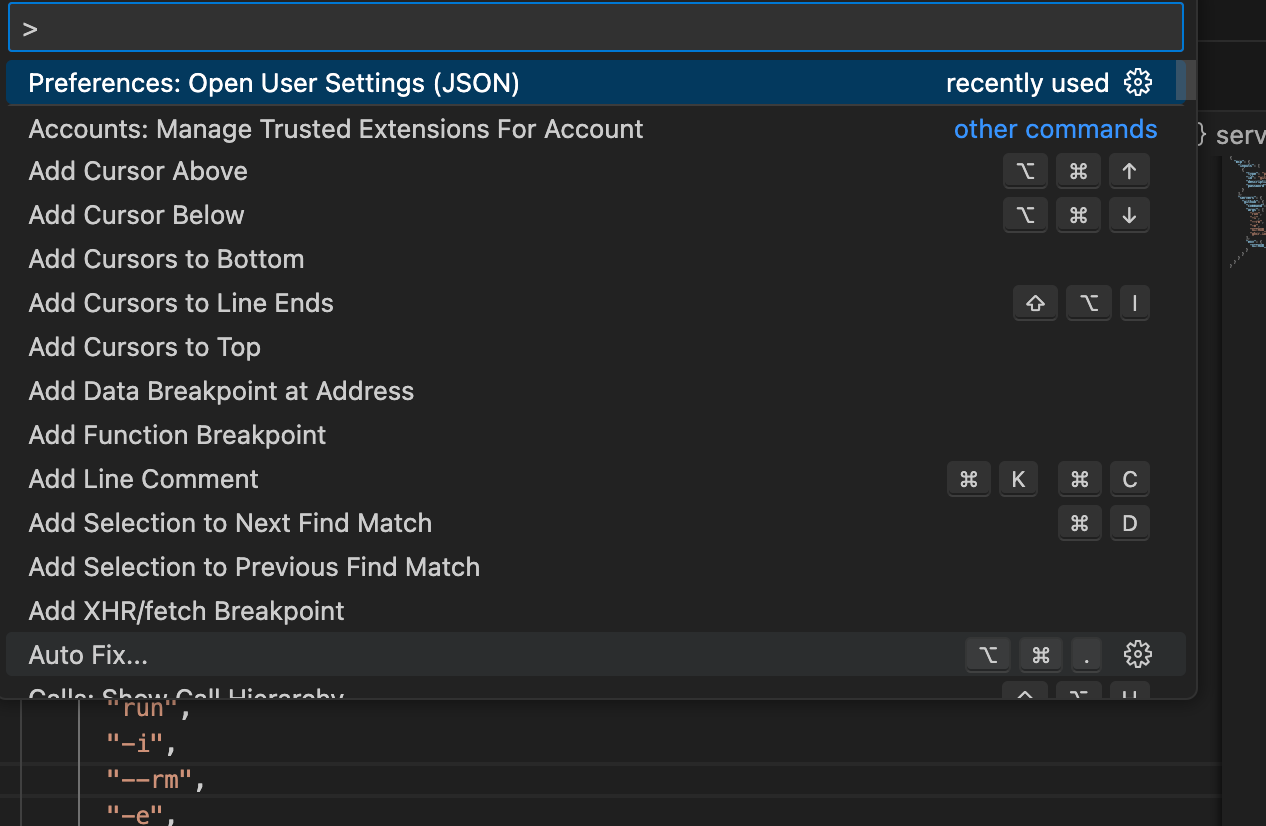
Add the MCP Configuration:
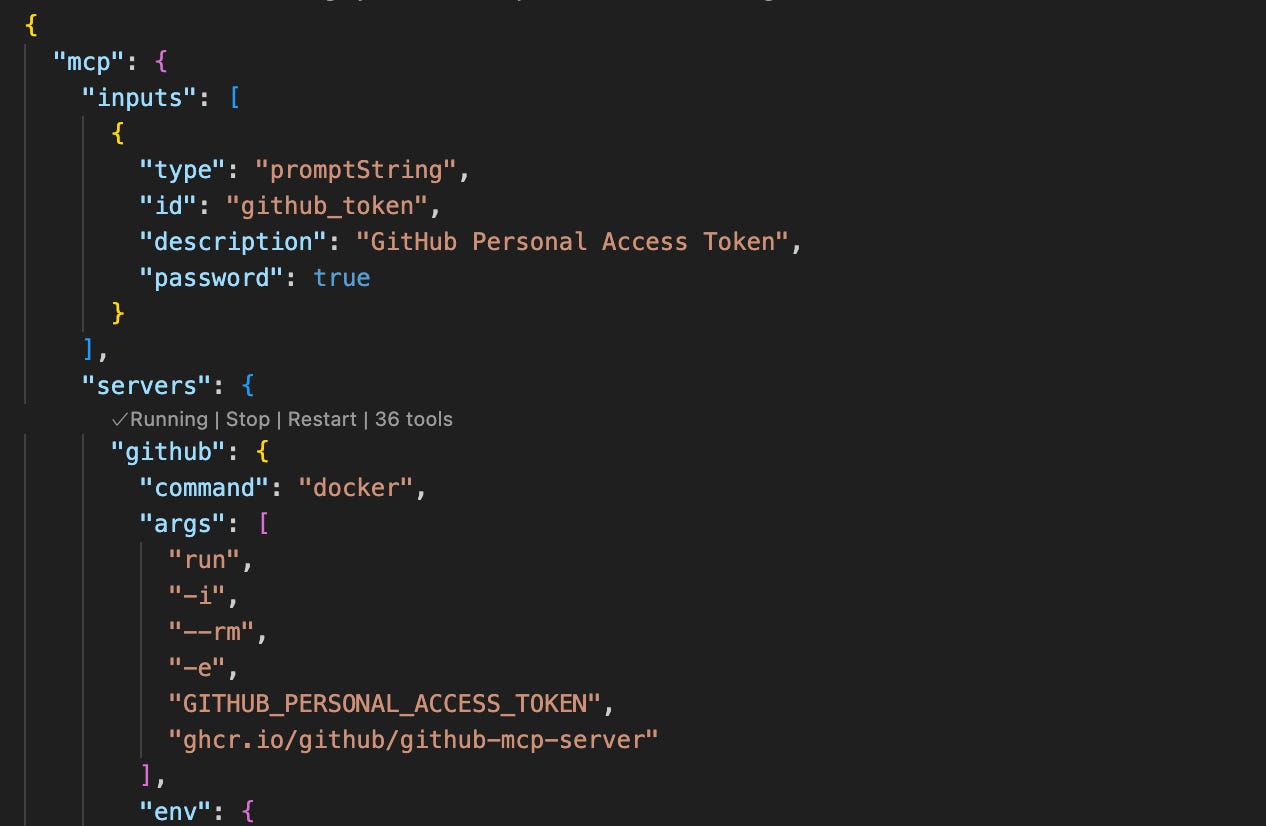
Add the following JSON configuration to your settings:
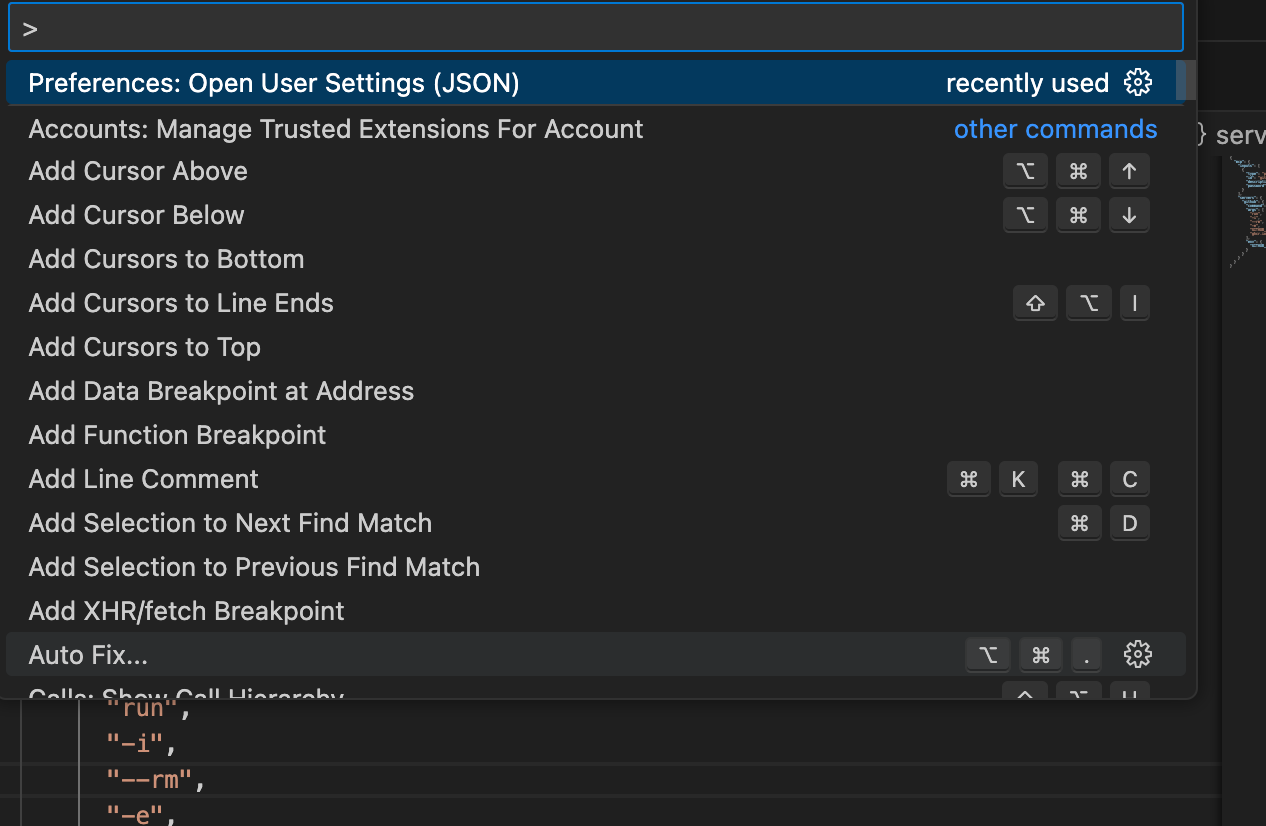
{
  "mcp": {
    "inputs": [
      {
        "type": "promptString",
        "id": "github_token",
        "description": "GitHub Personal Access Token",
        "password": true
      }
    ],
    "servers": {
      "github": {
        "command": "docker",
        "args": [
          "run",
          "-i",
          "--rm",
          "-e",
          "GITHUB_PERSONAL_ACCESS_TOKEN",
          "ghcr.io/github/github-mcp-server"
        ],
        "env": {
          "GITHUB_PERSONAL_ACCESS_TOKEN": "<YOUR_TOKEN>"
        }
      }
    }
  }
Set Your GitHub Token:
Create a new environment variable named
GITHUB_PERSONAL_ACCESS_TOKENSet its value to your GitHub Personal Access Token
Restart VS Code for the changes to take effect
Connect to the Server:
Start the Server
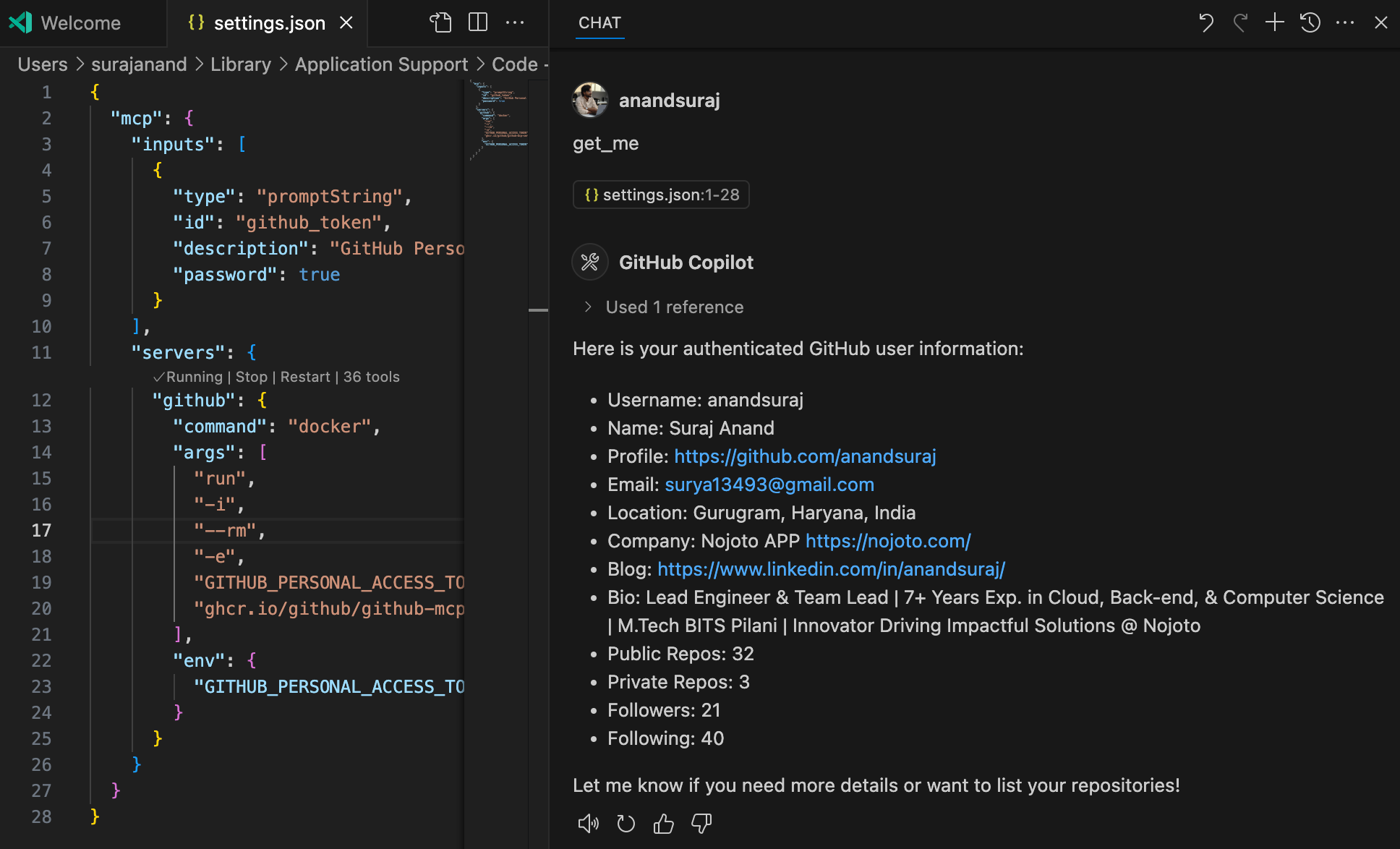
Play with Command using Github Copilot:
GitHub MCP Server: Practical Use Cases
The GitHub MCP Server enables AI assistants to interact directly with GitHub's APIs, unlocking powerful workflows and automation capabilities. Here are the most valuable use cases for different types of users:
Check here Tools to play with MCP Server: Github Tools
For Individual Developers
Repository Management
Code Exploration: Navigate large codebases and find relevant files without manual searching
Repository Analysis: Get statistics and insights about repository activity, contributors, and code quality
Branch Management: Create, switch, and merge branches through natural language commands
File Operations: Create, edit, and commit files without leaving your AI assistant interface
Development Workflows
Issue Tracking: Create, search, and update issues based on conversations with your AI assistant
Bug Triage: Analyze bugs and automatically create detailed issue reports with relevant code snippets
Commit History: Explore commit logs and understand code changes over time
Release Management: Plan and document releases based on completed work
Code Assistance
Code Reviews: Get AI-assisted code reviews with direct reference to repository code
Documentation Generation: Auto-generate documentation for functions, classes, or entire modules
Test Creation: Generate unit tests for existing code with direct commits to repositories
Code Refactoring: Get suggestions for code improvements with the ability to implement them directly
For Teams
Collaboration Features
Team Coordination: Get summaries of team activity across repositories
Onboarding Automation: Help new team members understand project structure and conventions
Pull Request Management: Create, review, and merge pull requests through conversation
Code Standards Enforcement: Check code against team standards before committing
Project Management
Project Boards: Create and manage GitHub project boards through conversational interfaces
Milestone Tracking: Monitor progress toward milestones and get status updates
Release Planning: Plan releases based on completed issues and pull requests
Team Analytics: Generate reports on team velocity, code quality trends, and contribution patterns
Knowledge Management
Wiki Management: Create and update project wikis through conversation
Codebase Documentation: Generate and maintain documentation that stays in sync with code
Decision Records: Document architectural decisions directly in the repository
FAQ Generation: Create and update FAQs based on common issues and solutions
For Open Source Maintainers
Community Management
Contributor Assistance: Help new contributors navigate project conventions and requirements
Issue Triage: Automatically categorize, label, and prioritize incoming issues
Template Management: Create and update issue and PR templates based on project needs
Community Metrics: Track community health and engagement statistics
Maintenance Tasks
Dependency Updates: Monitor and update dependencies with automated PRs
CI/CD Management: Configure and troubleshoot GitHub Actions workflows
Security Alerts: Monitor and respond to security vulnerabilities in dependencies
License Compliance: Check and enforce license compliance across the project
Governance
Contributor Recognition: Track and acknowledge community contributions
Release Notes Generation: Automatically generate detailed release notes from merged PRs
Roadmap Management: Track and update project roadmaps based on issue completion
Version Planning: Plan version releases based on feature completeness
For Technical Writers and Documentation Teams
Documentation Workflows
Doc Generation: Create initial documentation drafts from code and comments
Document Synchronization: Keep documentation in sync with code changes
Screenshot Automation: Generate and update screenshots for documentation
Sample Code Creation: Create and test sample code for documentation
Content Management
Release Documentation: Generate release-specific documentation changes
API Documentation: Create and maintain API reference documentation
User Guide Updates: Update user guides based on feature changes
Tutorials Creation: Generate step-by-step tutorials for common workflows
Business and Product Teams
Product Management
Feature Tracking: Monitor feature implementation progress across repositories
Backlog Management: Organize and prioritize product backlog items
Customer Issue Tracking: Connect customer feedback to specific code issues
Roadmap Visualization: Generate visual roadmaps from GitHub project data
Stakeholder Communication
Status Reporting: Generate status reports for stakeholders based on GitHub data
Demo Preparation: Identify and document new features for demos
Release Communications: Create release announcements with detailed feature lists
Customer Documentation: Generate customer-facing documentation from internal docs
Advanced Use Cases
AI-Enhanced Development
Code Generation: Generate code implementations directly into repositories
Automated Testing: Create and run tests based on code changes
Performance Optimization: Identify performance bottlenecks and implement solutions
Security Scanning: Perform security analysis and automatically create remediation PRs
Cross-System Integration
Jira-GitHub Integration: Connect GitHub activities with Jira tickets
Slack Notifications: Generate meaningful Slack updates from GitHub events
CI/CD Pipeline Management: Configure and optimize CI/CD pipelines based on repository needs
Deployment Automation: Manage deployment configurations and environments
Troubleshooting
If you encounter issues during installation or connection:
Docker Issues:
Verify Docker is running with:
docker --versionTry pulling the image manually:
docker pull ghcr.io/github/github-mcp-server
Authentication Problems:
Check that your token has the necessary permissions
Regenerate your GitHub token if needed
Ensure the token is correctly formatted with no extra spaces
Connection Errors:
Verify your internet connection
Check firewall settings that might block Docker connections
Try restarting your Docker service
Permission Denied Errors:
For Linux/macOS, check if you need to run Docker with sudo
For Windows, ensure Docker Desktop has the necessary permissions
Security Best Practices
Token Management:
Store your GitHub token securely
Use environment variables instead of hardcoding tokens
Regularly rotate your tokens (every 30-90 days)
Minimal Permissions:
Grant only the permissions necessary for your use case
Review and revoke unused tokens in GitHub settings
Next Steps
After successful installation:
Try simple commands like listing repositories or viewing issues
Experiment with creating issues or pull requests
Explore more advanced workflows like code reviews or project management
Customize your setup based on your specific needs and workflows
Following these detailed steps, you should have a functioning GitHub MCP Server that allows your AI assistant to interact directly with your GitHub repositories and perform actions on your behalf.